VibeThing
Your Car Thing as a desk companion. Plug a Spotify Car Thing into your PC and use it as a small second screen for music, your calendar, the weather, PC stats and more.
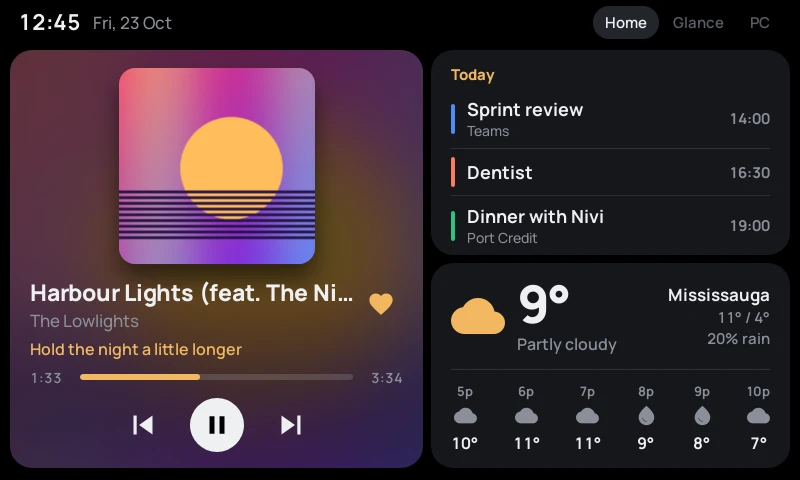
On the Car Thing
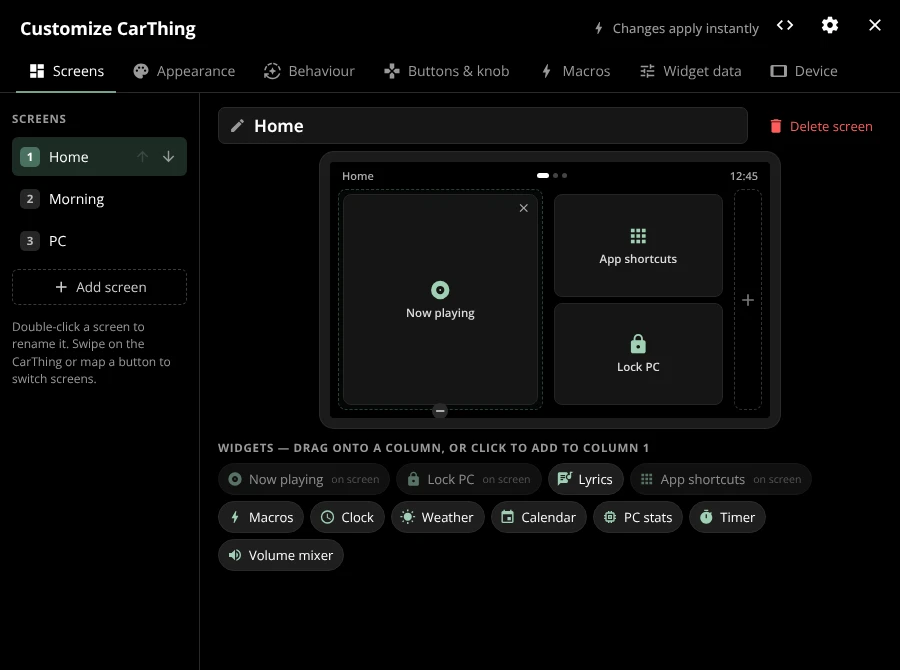
Screens you design
Up to three columns of widgets per screen, as many screens as you want. Swipe between them or give each one a button.
Now playing from anything
Spotify, YouTube, VLC and anything else Windows can see, with a fullscreen player, synced lyrics and what plays next.
Widgets
Calendar from any ICS link, weather, clock, PC stats, a per-app volume mixer, app shortcuts, macros and a timer.
A timer on the dial
Turn the dial to set it. It speeds up the longer you turn, and Windows notifies you when it ends.
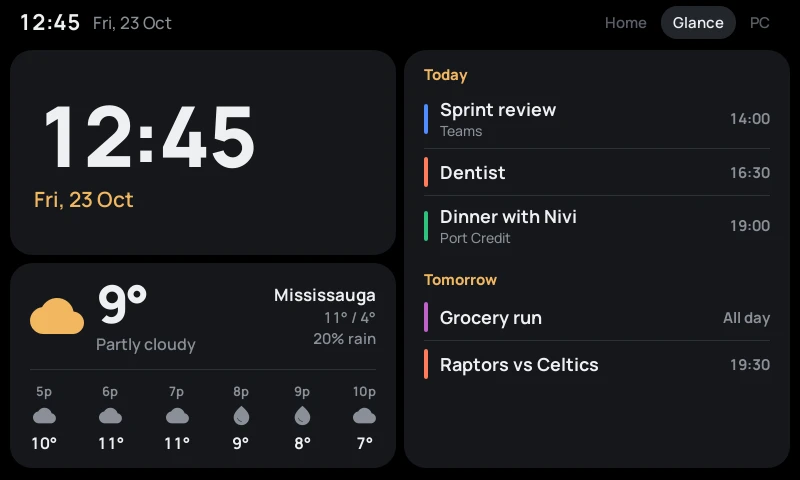
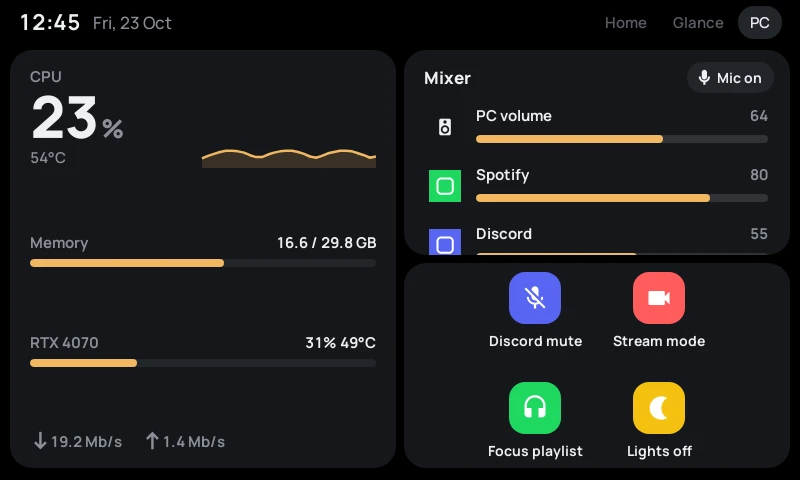
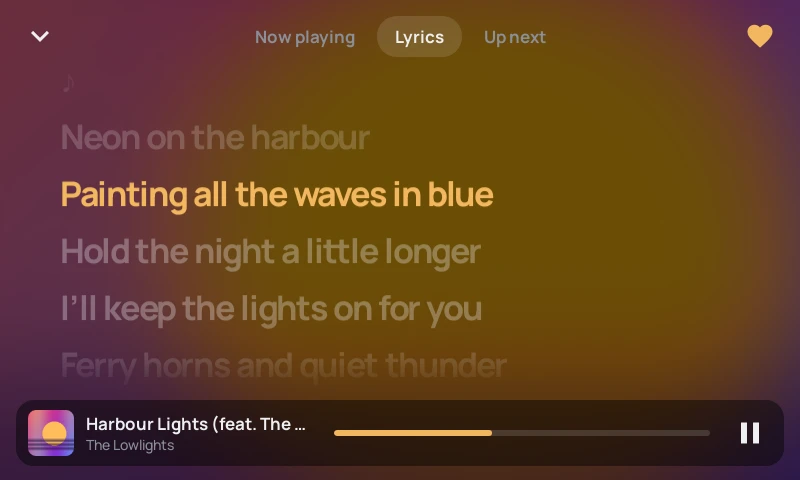
In the desktop app
Drag-and-drop layout
Drag widgets onto screens, and rename or reorder screens. Changes show up on the Car Thing right away.
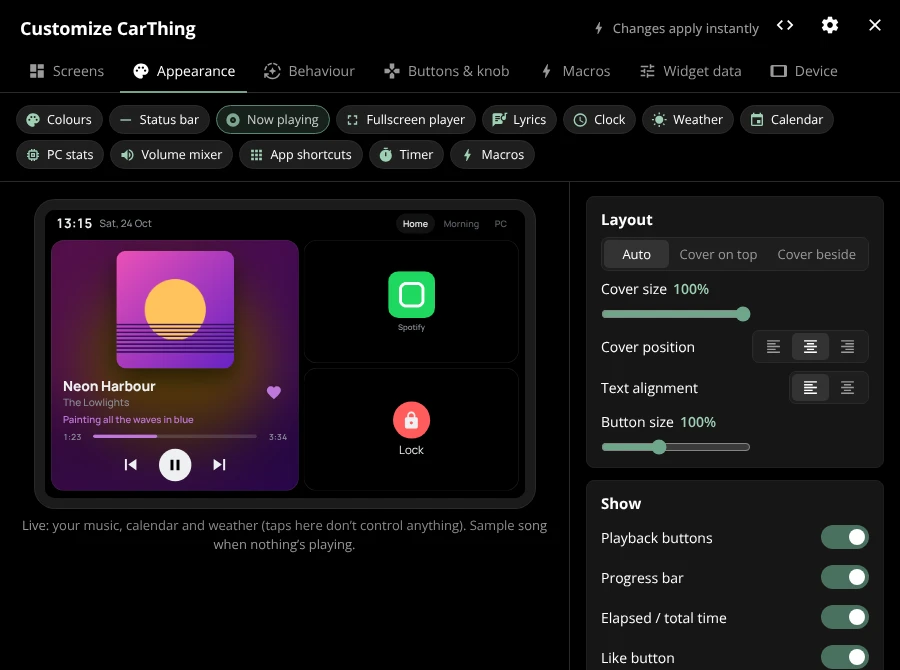
Live appearance preview
Adjust text size and weight for every widget and the player layout, previewed with your own music, calendar and weather.
Behaviour and controls
Switch screens automatically when music starts, dim on a schedule, and choose what every button and the dial do.
Backup
Export and import all your settings. An existing GlanceThing setup is copied over the first time you open it.
Getting started
- 1Download the installer or the portable zip from Releases. VibeThing is built and tested for Windows.
- 2Run it. The setup guide walks you through flashing your Car Thing if needed, connecting it and choosing a music source.
- 3Once it's connected, VibeThing opens to Customize so you can start building screens. If you use GlanceThing, close it first, since only one app can talk to the Car Thing at a time.
Credits
VibeThing is a customised fork of GlanceThing by BluDood. The Car Thing setup, connection and the original app all come from his work. Lyrics come from LRCLIB and weather from Open-Meteo. MIT licensed, like GlanceThing.